

Learn Power BI by building one complete business project: 40+ hours, 1 year of access, US$ 9 paid once

The Power BI eXperience Complete Course, with Leonardo Karpinski, CEO of Xperiun.

You start from zero and solve one company's problems, mission by mission, until you have a complete project to show.

The course is 100% online and recorded. You get instant access to more than 40 hours of lessons and learn the most popular business intelligence tool in the market at your own pace.

You pay US$ 9 one time. There is no monthly fee. You get 1 year of access to everything: all the lessons, the 23 dashboards, the student community, the challenges and the certificate.

If the course is not for you, ask for your money back within 7 days.

days
hours
minutes
seconds

One price, everything included

Monthly Plan

$9/ month

paid monthly

  • 1 month commitment
  • 7 day money back guarantee
  • 40 hours of recorded content
  • 23 Dashboards to download

Complete Course

Pay
once
US$ 9 one time

Before: US$ 87 per year

  • One payment, no monthly fee
  • 1 year of access
  • 7-day money-back guarantee
  • 40+ hours of recorded lessons
  • 23 dashboards to download
  • Student community
  • Exclusive challenges
  • Certificate of completion
dias
horas
minutos
segundos

With Power BI, you will:

Stop repeating the same Excel tasks every month

Build interactive dashboards

Get your monthly reports done faster

Answer business questions with data

When I started working with Power BI, there was very little material to learn from. Hardly anyone was talking about it. I had to research almost everything on my own.

You do not have to go through the same struggle. I built this course to be the path I wish I had at the start: what to learn, in what order, and how to use it at work. The 6 missions are one project, so you always know why you are learning each topic.

The course is 100% online and self-paced. You watch wherever and whenever you want, for 1 year. You can pause, go back and watch a lesson again as many times as you need. You can start today and build your first report in Mission 1.

This course used to cost US$ 9 per month, or US$ 87 per year. Now there is only one plan, with everything inside.

One payment of US$ 9. No monthly fee.

Does this sound familiar?

Your company's data lives in many Excel files. At the end of every month, you rush to put it all together. Your manager asks for the report again, and something is always missing.

There is a better way. You build the report once. It updates with new data, and anyone can filter it. That is what Power BI does, and it is what you will learn here.

In the Power BI eXperience Complete Course, you learn from zero how to build modern, interactive reports with Power BI, the Microsoft tool that is replacing Excel reports in many companies.

Why I built it this way

My name is Leonardo Karpinski, and I am the CEO of Xperiun. I have worked with Power BI every day since 2016. Since then, I have put more than 20,000 hours into client projects, courses, training and research.

I studied what exists in the market, in Brazil and around the world. I can tell you that this is the most complete training program for professionals who want to master Power BI.

Short videos about single features are good for tips. They do not show you how the pieces fit together. So this course follows one project from Mission 1 to Mission 6, with the same client, step by step. By the end, you know how to take raw data and turn it into a published report that people use.

What changes when you start the course

Start from zero and build your first report in Mission 1

Show your manager reports they can filter
Have dashboards to show in interviews

Spend less time on work a report can do

What students say

More than 35,000 students have studied in the Xperiun ecosystem. Here is what some of them wrote to me, translated from Portuguese.

You learn Power BI by acting as a BI consultant

This is what makes the course different. You solve real business problems for Heavy Power Nutrition (HPN), a food supplement company in Seattle, USA. HPN even has its own website.

You work on this project with me. We use Power BI to build every report and analysis that HPN needs.

The client sends us missions. Each mission needs new knowledge: business, ETL (data transformation), data modeling, DAX, visualization, sharing, automation and SQL Server.

One project, from start to finish, the way it works in a real job.

I will guide you, step by step

You do not need any experience with Power BI to start.

The course is for any professional who needs to build reports or analyze data. You do not need the job title of Analyst. If you use data in any way, you already do analysis, and this course is for you.

You will learn the whole process, from installing Power BI to setting up the automatic refresh of your reports.

I do not stay on the surface. I go deep into each concept, with examples, so you understand why things work and not only where to click.

And if you already use Power BI, the lessons on data modeling, DAX and governance will still teach you a lot.

Want to see every lesson?

The course has more than 40 hours of content, with exercises and challenges so you practice what you learn and use it in your own reports at work. This is practical content, validated by more than 35,000 students in the Xperiun ecosystem.

The 6 missions follow the HPN project, so each mission builds on the one before.

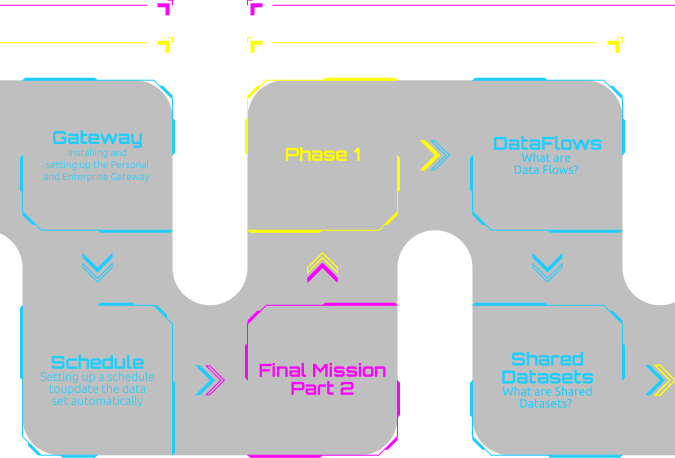
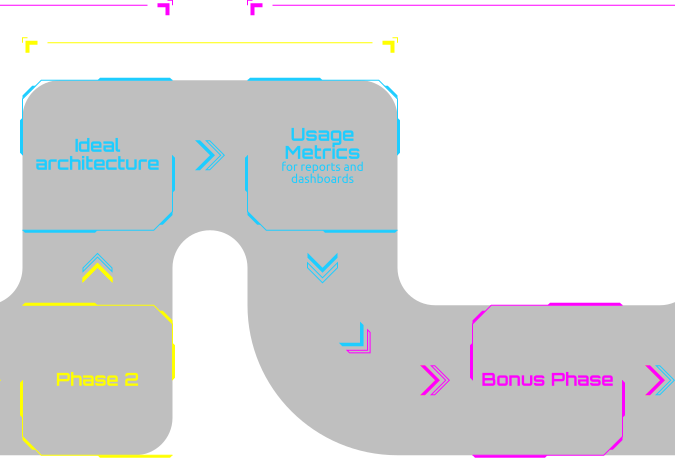
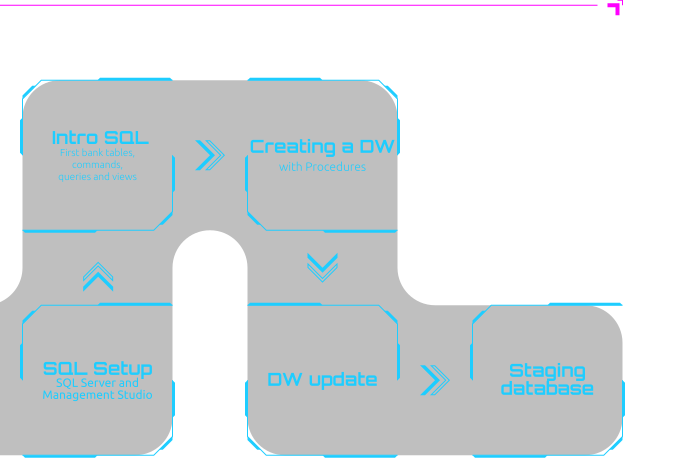
Here is the full list: Getting Started, the 6 missions and 6 bonuses. Click Getting Started or a mission to see its lessons.

  1. Welcome to a new Experience
  2. What are we gonna solve in this program?
  3. How do I download the materials?
  4. How to ask for help?
  5. What is Power BI and Business Intelligence?
  6. The 7 pillars for Mastering Power BI
  7. Case studies with Power BI
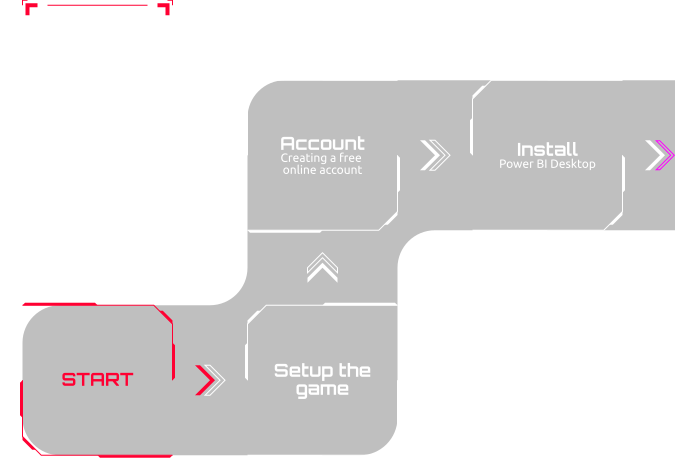
  8. Installing Power BI Desktop
  9. Creating your free online account
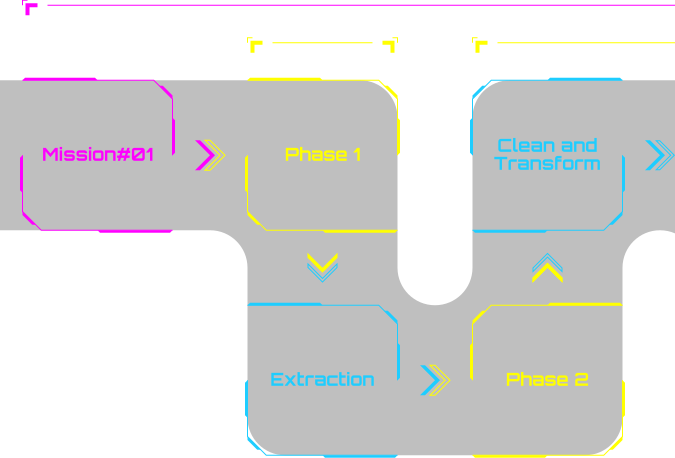
  1. Understanding the mission and downloading the data
  2. Where does data come from?
  3. Exploring Power BI Desktop
  4. Cleaning and transforming our data
  5. Comparing Excel (XLOOKUP) and Power BI (Merge Queries)
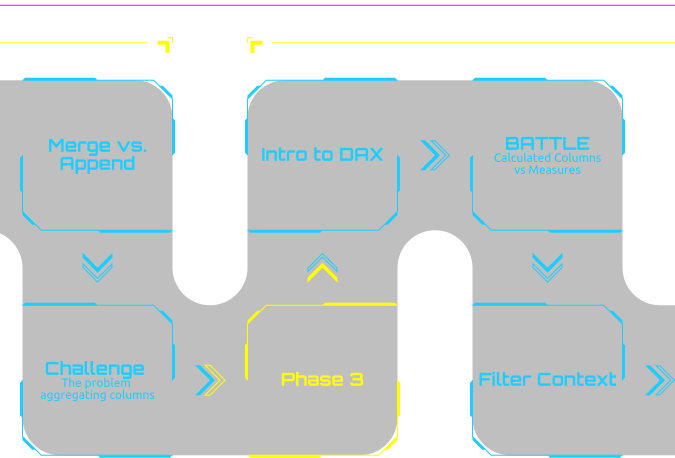
  6. Merge vs Append Queries
  7. Different types of Join in Merge Queries
  8. Creating our first visuals – Part 1
  9. Creating our first visuals – Part 2
  10. The problem aggregating columns
  11. Creating custom columns in Power Query
  12. What happens when data changes?
  13. What is the DAX Language?
  14. Calculated Columns (Power Query and DAX) vs Measures
  15. Removing Columns and checking the file size
  16. Evaluation Contexts: Understanding the Filter Context
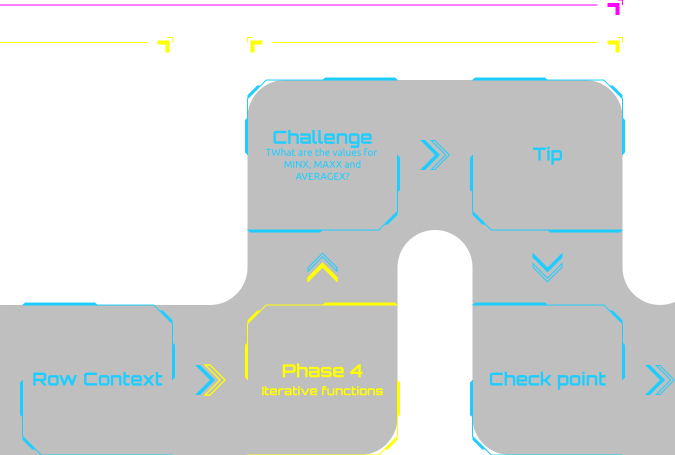
  17. Evaluation Contexts: Understanding the Row Context
  18. Iterative functions (SUMX) to work row by row
  19. Exercise: what are the values for MINX, MAXX and AVERAGEX?
  20. Do I have a Filter Context when using SUMX?
  21. Where can I find a list of DAX functions?
  22. Creating all other measures for the Mission
  23. Organizing our measures into a specific folder and formatting them
  24. Completing Tasks 1 to 5 for the Mission
  25. Completing Task 6 of the Mission
  26. Visuals that help you answer your data
  27. Changing the theme
  28. Avoid manipulating your data before importing in Power BI
  29. Recap Mission #01
  30. Download the final solution for the Mission
  1. Understanding the mission and downloading the data
  2. Connecting to the Target table and preparing it
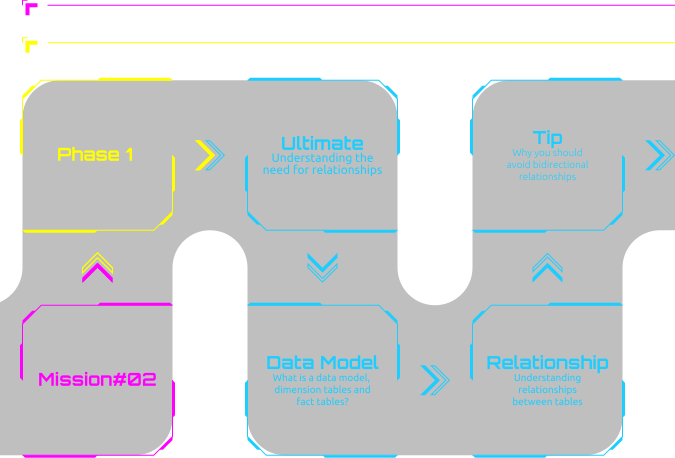
  3. Understanding the need for relationships
  4. Normalization vs Denormalization: which one?
  5. What is a data model, dimension tables and fact tables?
  6. Normalizing our data to create dimension tables
  7. Understanding relationships between tables
  8. What happens when I do not have a relationship?
  9. Creating many-to-many relationships
  10. Why you should avoid bidirectional relationships
  11. Using measures to filter slicers
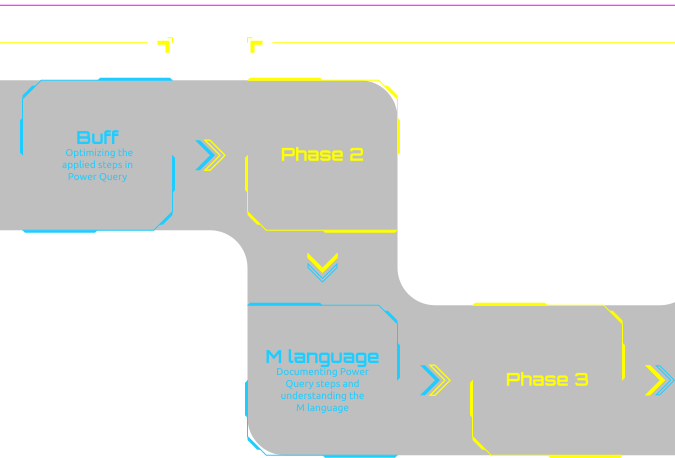
  12. Optimizing the applied steps in Power Query
  13. Documenting Power Query steps
  14. Understanding the M Language
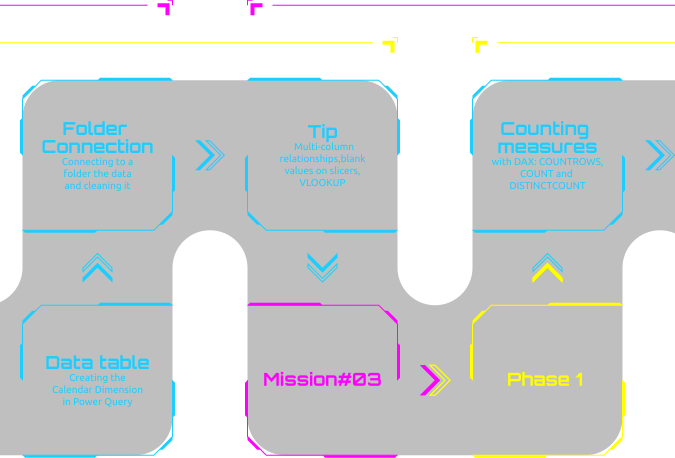
  15. Creating the Date (Calendar) Dimension in Power Query
  16. Connecting to the Web to including holidays
  17. Turning the Date Dimension dynamic
  18. Creating MonthYear column in the Date Dimension
  19. Comparing Net Sales and Target
  20. Connecting to a folder and cleaning the data
  21. What should we recommend to the client?
  22. [Tip] Why sometimes we get a blank value on slicers?
  23. [Tip] 4 different ways to do the VLOOUP in Power BI
  24. [Tip] Traditional Many to Many relationships between dimensions
  25. [Tip] Multi-column relationships
  26. Download the final solution for the Mission
  1. Understanding this mission
  2. Counting measures with DAX: COUNTROWS, COUNT and DISTINCTCOUNT
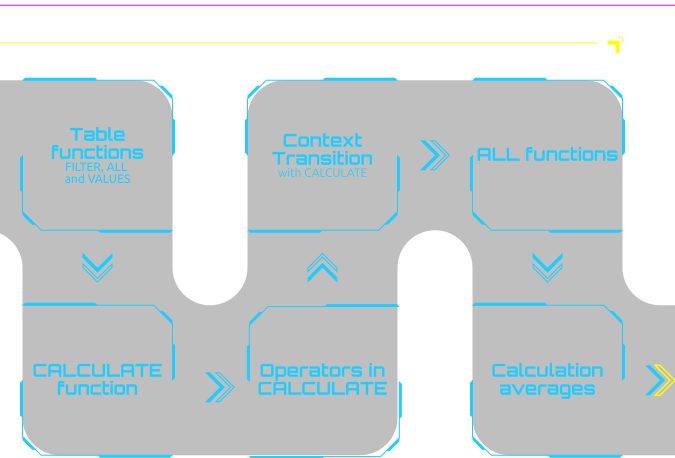
  3. Table functions: FILTER, ALL and VALUES
  4. Testing your understanding over filter context with MAX and MIN
  5. CALCULATE: the most important function in DAX
  6. Filtering expressions with CALCULATE
  7. Operators “AND” and “OR” in CALCULATE
  8. Removing filter with ALL and ALLSELECTED
  9. Context Transition with CALCULATE
  10. Using measures to filter other measures in CALCULATE
  11. Calculating averages
  12. Using GIF and Emojis in segmentation
  13. Creating a dynamic segmentation
  14. Using variables and adjusting sort by
  15. Adjusting the total to be the sum of the values
  16. Enabling inactive relationships with USERELATIONSHIP
  17. Ranking functions (RANKX, TOPN)
  18. Common mistakes when authoring measures
  19. Solving Task 1 for the Mission
  20. Solving Task 2 for the Mission
  21. Solving Task 3 for the Mission
  22. Solving Task 4 for the Mission
  23. Solving Task 5 for the Mission
  24. Solving Task 6 for the Mission
  25. Download the final solution for the Mission
  1. Understanding this mission and downloading the data
  2. Disabling Auto Date/Time
  3. Time Intelligence: SAMEPERIODLASTYEAR and PREVIOUSYEAR
  4. Analyzing Year over Year – Part 1
  5. Analyzing Year over Year – Part 2
  6. Time Intelligence: DATEADD and PREVIOUSMONTH
  7. Time Intelligence: DATESYTD
  8. Cumulative calculation with CALCULATE + FILTER + ALL
  9. DATESBETWEEN and DATESINPERIOD functions
  10. Creating dynamic ranges
  11. Hiding future dates
  12. Creating an Income Statement (Profit and Loss Statement)
  13. Performing a Vertical Analysis in the PnL
  14. Performing a Horizontal Analysis in the PnL
  15. Conditional formatting with icons for HA
  16. Download the final solution for the Mission
  1. Understanding this mission
  2. Best practices for Data Storytelling
  3. Adding background to pages
  4. Customizing the theme and formatting visuals
  5. Changing the interaction between visuals
  6. Understanding Drill-down
  7. Conditional formatting
  8. Tooltip – Part 1
  9. Tooltip – Part 2
  10. Creating dynamic titles for visuals
  11. Inserting tooltip in the visual header
  12. Adding slicers for data segmentation
  13. Adding filters for visual level, page level, report level
  14. Applying TOP N to the filter pane
  15. Using measures to filter slicers
  16. Changing pages with buttons and images
  17. Bookmarks + Selection + Buttons – Part 1
  18. Bookmarks + Selection + Buttons – Part 2
  19. Drill-through: see detailed information
  20. Changing pages with slicers
  21. Decomposition Tree visual
  22. Key Influencers visual
  23. Automatic analysis: Anomaly Detection
  24. Automatic analysis: Explain Increase and Decrease
  25. Automatic analysis: Find where the distribution is different
  26. Advanced analysis: Forecasting, Trend and Clustering
  27. Importing custom visuals
  28. Mobile view
  29. Download the final solution for the Mission
  1. Understanding Power BI Service
  2. Publishing a report
  3. Creating Dashboards
  4. Insights, Alerts, Subscriptions and Comments
  5. Downloading PBIX, exporting to PowerPoint, PDF and Excel
  6. Power BI Licensing: Free x Pro x Premium
  7. Creating Workspaces
  8. How to share content?
  9. Sharing individual reports and dashboards
  10. Publishing an App
  11. Publishing reports to the web
  12. Sharing with external users in the organization (B2B)
  13. Applying static Row Level Security (RLS)
  14. Applying dynamic Row Level Security (RLS)
  15. Installing and configuring the Personal Gateway for automatic updates
  16. Installing and configuring the Enterprise Gateway for automatic updates
  17. Setting up a schedule refresh
  1. Why should I worry about this?
  2. What are dataflows?
  3. Creating dataflows to reuse data across different models
  4. Importing data from dataflows
  5. Certifying and promoting dataflows
  6. What are shared datasets?
  7. Certifying and promoting datasets
  8. Using shared datasets to create new reports
  9. Ideal architecture with dataflows and shared datasets
  1. Understanding this mission and downloading the data
  2. Installing SQL Server and Management Studio
  3. Restoring the backup database in SSMS
  4. Import x DirectQuery
  5. Importing database tables into Power BI
  6. Basic SQL language commands
  7. Creating queries for dimensions
  8. How to create dimensions from tables in Power Query
  9. Be careful when using queries inside Power BI
  10. Creating views in the database and importing into Power BI
  11. Creating a Data Warehouse with procedures
  12. Configuring jobs for updating DW

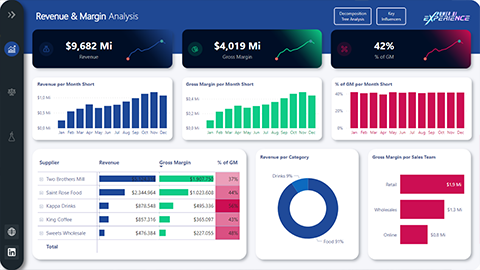
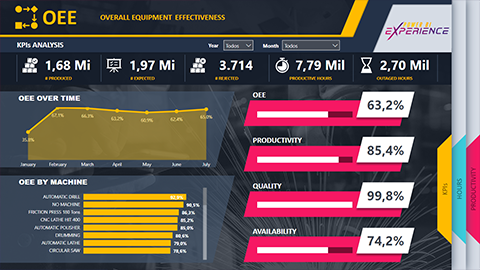
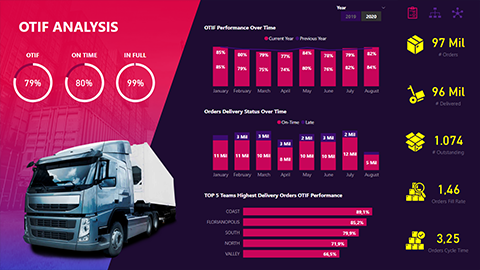
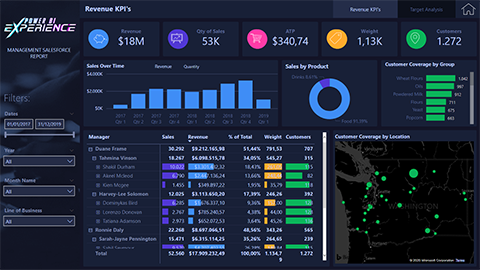
Some of the 23 dashboards you can download

These are extra solutions, besides the dashboards you build during the missions. You can download them and use them as a reference for your own work.

You get 23 more solutions. 13 of them were built by my best students in Brazil, for the same Heavy Power Nutrition project, so you can compare how different people solved the same problem. The others cover areas like Human Resources, Logistics, Finance and Production.

Do you know what a project like this is worth? A company like HPN would pay a BI consultancy more than US$ 20,000 to build it. Here, all 23 solutions are part of the US$ 9.

Use them to study, to get ideas and to start your own portfolio.

Stand out with the platform that leads the BI market

Join more than 35,000 students in the Xperiun ecosystem. Many of them are using this moment to grow their careers at big companies like 3M, BIC, Continental, Bridgestone, Suzano, CBF, ArcelorMittal and Nestlé, among hundreds of others.

Now look at the image on the right:

Join more than 35,000 students in the Xperiun ecosystem. Many of them are using this moment to grow their careers at big companies like 3M, BIC, Continental, Bridgestone, Suzano, CBF, ArcelorMittal and Nestlé, among hundreds of others.

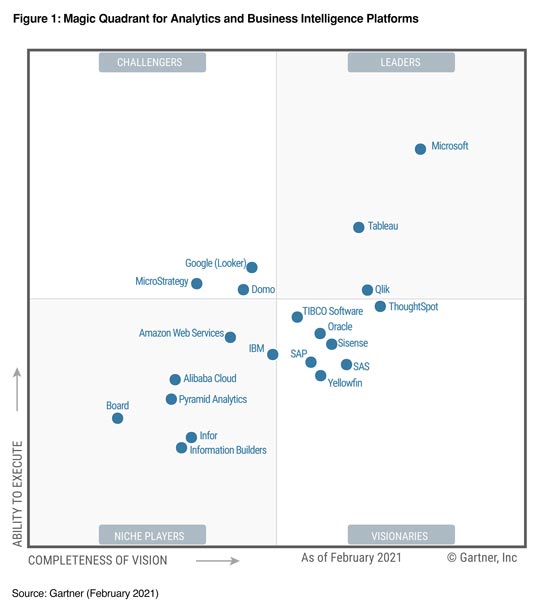
Now look at the image below:

This is the Magic Quadrant for Analytics and Business Intelligence Platforms from Gartner, a global research company, as of February 2021. It compares the main BI platforms on the market. Microsoft is in the Leaders area, at the top right, ahead of all the other platforms.

When you learn Power BI, you learn the platform that leads this market. That gives you a strong advantage when you look for a job or new projects.

If I were you, I would use this moment to learn it. With 7 days to ask for your money back, your risk is low.

Meet your instructor:
Leonardo Karpinski

Microsoft Certified Trainer

Microsoft MVP (Most Valuable Professional)

Over 600 certified students

More than 100 companies attended in person

35,000+ students in Xperiun's ecosystem

Student satisfaction: 4.9 out of 5

Q&A

All lessons are recorded and online. You watch them whenever you want, as many times as you want, during your 1 year of access.

You have 1 year of access to everything.

If you do not like the course, you have 7 consecutive days from your purchase to cancel it. You get 100% of your money back, without any paperwork.

Yes. When you complete 100% of the course, you receive a digital certificate of completion, issued by me. I am a Microsoft Certified Trainer and a Microsoft MVP.

Yes. I teach you everything from zero, starting with how to install Power BI. If you already work with data in some way, or want to, the course starts exactly where you are.

Free videos are good for extra tips and tricks. But they do not teach you in the right order, and they do not teach the BI concepts behind each step. In this course, you learn inside one project, so each mission builds on the one before. For US$ 9, you also get the 23 dashboards, the community, the challenges and the certificate.

Instead of me talking about myself, look at what students say. Read the testimonials on this page again. More than 35,000 students have studied in the Xperiun ecosystem, and our average student rating is 4.9 stars out of 5.

Also look at the method. In this course, you solve one company's problems from start to finish, the way a BI consultant does. Xperiun also has a free YouTube channel, in Portuguese, with about 388,000 subscribers and more than 900 videos.

Any new skill takes some effort. Knowing this, I designed the course so you can finish the main part in about 20 days, studying around one hour a day.

After that, you can already use Power BI at work and build good quality reports. You still have the rest of your year of access to go deeper, watch the bonuses and practice with the challenges.

My goal is to take you from zero and support you all the way, so you get past each obstacle quickly.

Start your first complete Power BI project today